Create invoices and quotes with Invoice Builder
Professional Email powered by Titan's Invoice Builder lets you create invoices and quotes using customizable templates. Add your business and customer details, include items and amounts, and insert invoices or quotes directly into emails.
Note: Invoice Builder is only available to Pro Plus, Premium and Ultra plans. Upgrade my email plan
- Sign in to webmail. Use your Professional Email powered by Titan address and password (your GoDaddy username and password won't work here).
- In the upper-left corner, select New email.
- Below the subject line, select Invoices. Invoice Builder will open.

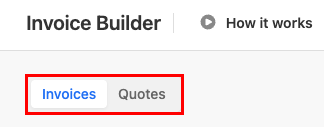
- In the upper-left corner, select Invoices or Quotes.
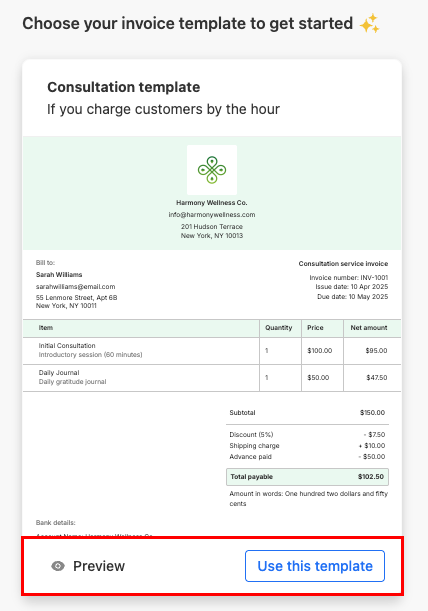
- Choose one of the available templates.
- Select Preview to see how a template looks.
- Select Use this template to open the editor.
- Edit the template using the blocks shown in the leftmost panel, or select
 Edit on individual blocks.
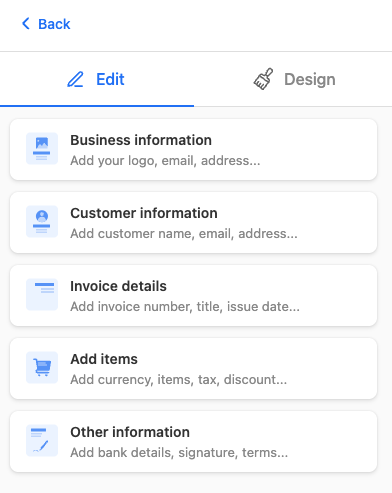
- In the Business Information section, enter details like your business name, business email, tax ID, business address and company logo.
- In the Customer Information section, add billing and shipping information.
- In the Invoice details section, add invoice or quote details.
- In the Add items section, add items, quantities, and prices.
- In the Other information section, add optional notes or additional information.
- After creating your invoice or quote, in the upper-right corner, select Download or Insert in email.
To return to Invoice Builder, open a new email and select Invoices. From there, edit or manage invoices and quotes you’ve created previously.