Restore emails using Email Backup for Professional Email powered by Titan
If emails go missing from a Professional Email powered by Titan mailbox, like if they were deleted by mistake, lost during a migration or cleaned up too aggressively, you can restore them using Email Backup.
- Sign in to webmail. Use your Professional Email powered by Titan address and password (your GoDaddy username and password won't work here).
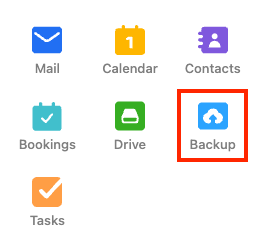
- In the upper-right corner, select
 Switch apps, and then Backup. Email Backup will open in a new tab.
- Next to the mailbox you want to restore, select View.
- Choose the backup version you want to restore. This defaults to the most recent version, or you can search by date.
- Select Restore, then choose how:
- Add to Original Folders puts only the missing emails back where they were, without disrupting anything already in the mailbox. This is the best option for most restores.
- Restore to a Separate Folder brings back everything from that backup version into a new folder named for the restore date (for example, "Restored Emails 18-11-25"), so you can review it and manually move what you need.
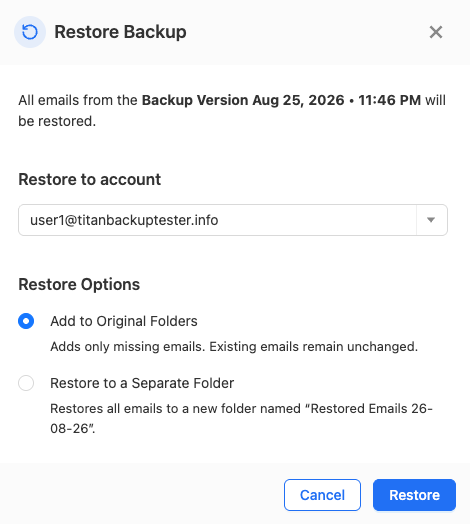
- Select Restore to start. Restored emails keep their original timestamps and are marked unread; they never overwrite anything currently in the mailbox.
You'll see a message saying that the restore is in progress. You'll receive an email when the restore is complete.
Note: If a mailbox is close to its storage limit, a restore can fail. Backup storage doesn't count against the mailbox quota, but restored emails do, so free up space in the mailbox before trying to restore again.